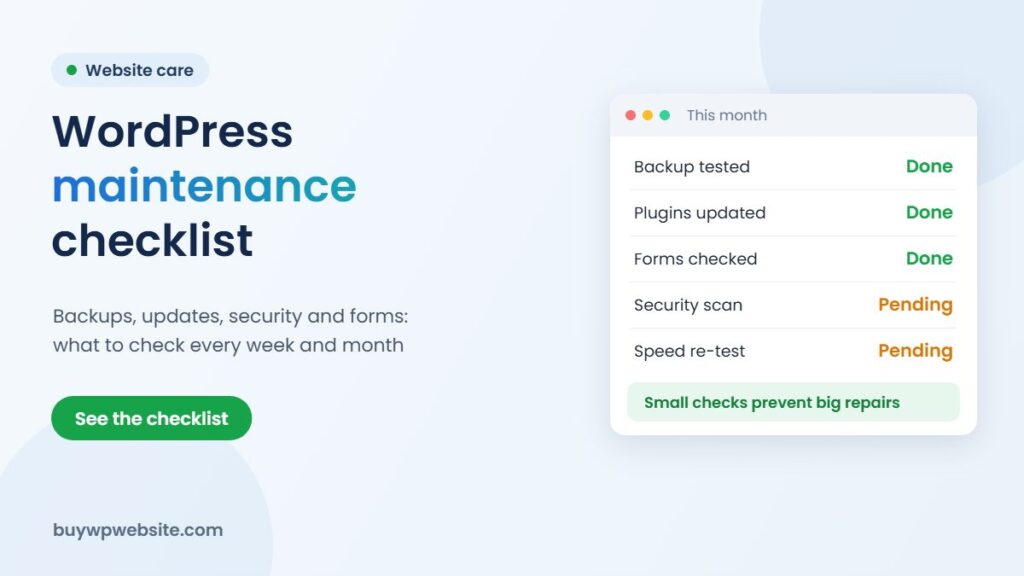
Quick answer: A WordPress maintenance checklist keeps your business website safe, fast and working. Each week, confirm backups are running and the contact form delivers enquiries. Each month, update WordPress, plugins and theme after a backup, review security, check speed and fix broken links. Each quarter, test a full restore, review users and renew anything about to expire.
A website is not a one-time purchase like a signboard. WordPress, its plugins and its theme receive regular updates, many of which fix security problems. Skip them for a few months and small issues pile up: a form that silently stops sending, an expired SSL certificate, a plugin with a known vulnerability. The checklist below is written for owners who are not developers.
Why does a WordPress site need regular maintenance?
WordPress powers a large share of the web, which also makes it a popular target for automated attacks. Most of those attacks look for outdated plugins and weak passwords rather than targeting your business personally. Regular maintenance closes those doors. It also protects the things that actually bring you money: your enquiry forms, WhatsApp button, Google Maps listing link and page speed.
Weekly checks (10 minutes)
- Backups ran: confirm the latest automatic backup completed and is stored somewhere other than the website server.
- Test the contact form: send yourself a test enquiry and make sure it arrives. Forms break quietly after email or plugin changes.
- Click your WhatsApp and call buttons on a phone to confirm they open correctly.
- Look at the homepage on mobile for anything broken, such as missing images or overlapping text.
- Check for spam comments or fake form entries and make sure reCAPTCHA is still working.
The monthly WordPress maintenance checklist
Updates (after a fresh backup)
- Update plugins one at a time where possible, then check the pages they affect.
- Update the theme. If your design was customised directly in the theme files rather than a child theme, those edits can be lost, so check first.
- Apply WordPress core updates. Minor security releases often install automatically; major versions deserve a quick test.
- Remove plugins and themes you no longer use. Deactivated plugins can still be a risk if they stay installed.
Security
- Review the security plugin or hosting firewall log for repeated login attempts.
- Check that every administrator account belongs to someone who still needs it.
- Confirm the SSL certificate is valid and the padlock shows on every page.
Performance and content
- Re-test the homepage and one key service page in PageSpeed Insights on mobile.
- Check Google Search Console for new errors in page indexing or Core Web Vitals.
- Fix broken links, outdated prices, old offers and staff or timing changes.
- Clean up the media library and remove spam comments and old post revisions if your setup allows it.
Quarterly and yearly tasks
| How often | Task | Why it matters |
|---|---|---|
| Quarterly | Restore a backup to a test copy | A backup you have never restored is only a hope |
| Quarterly | Review all user accounts and passwords | Former staff and agencies often keep access |
| Quarterly | Check Google Business Profile details match the site | Mismatched phone numbers or timings confuse customers |
| Quarterly | Review Analytics for your top pages and enquiries | Shows what to improve or expand |
| Yearly | Renew domain and hosting well before expiry | An expired domain takes the whole site and email offline |
| Yearly | Review the privacy policy, terms and contact details | Keeps legal pages and business details current |
| Yearly | Plan a content or design refresh | Keeps the site in step with your services |
Backups: the one task you cannot skip
If you only do one thing on this list, make it backups. A good backup routine has three features: it runs automatically, it stores copies away from the website server, and it keeps several older versions so you can go back to a date before a problem started. Daily backups suit sites with frequent orders or form entries; weekly backups may be enough for a small brochure site that rarely changes. Whatever the schedule, test a restore occasionally. Many owners only discover their backups were incomplete on the day they need them.
Common mistakes business owners make
- Clicking “update all” on a live site with no backup.
- Sharing one admin login among several people or agencies.
- Installing a new plugin for every small feature instead of asking whether it is needed.
- Ignoring the “your site is experiencing a technical issue” email from WordPress.
- Letting the domain auto-renew card expire, so renewal fails without anyone noticing.
- Keeping an old developer’s access long after the project ended.
When should you hand maintenance over?
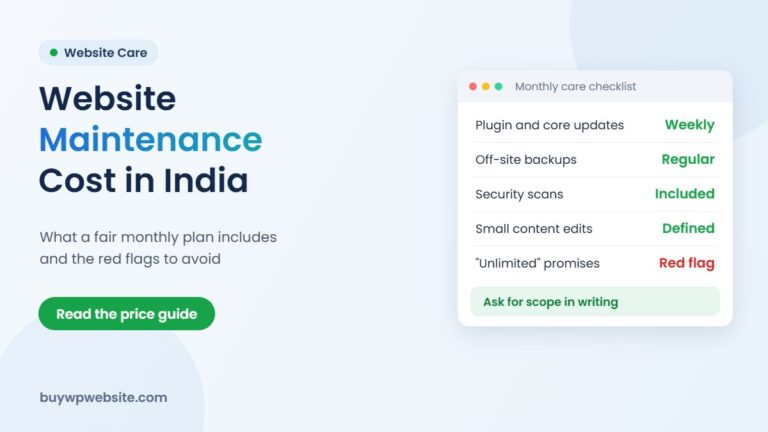
Doing it yourself is realistic if you are comfortable with backups, have time every month and have a staging copy for testing updates. Hand it over when updates make you nervous, when the site takes orders or payments, when you have already had one hack or outage, or when your time is simply worth more running the business. If you are budgeting for a new or rebuilt site, our guide to website cost in India breaks down what a business website costs.
How we look after BuyWPWebsite sites
Every business website we build, from ₹9,999, includes first-year hosting, backups, contact forms with reCAPTCHA and 1 to 3 months of free maintenance depending on the plan. Our team handles updates and changes for you, free during the plan’s maintenance period; customisation after that is ₹1,000/hour. Standard and Premium plans also include website training. Want someone to look after your existing site? Message us on WhatsApp or through our contact page and tell us what you need. For larger rebuilds, Webuncles offers full website design and development.
Frequently asked questions
How often should I update WordPress plugins?
Check for updates at least once a month, and apply security updates as soon as you can. Always take a backup first and update one plugin at a time on important sites, so you know which one caused a problem if something breaks.
Are automatic updates safe for a business website?
Automatic minor and security updates are generally sensible. Automatic major updates for plugins that control your design, forms or checkout carry more risk, so many owners prefer to apply those manually after a backup.
How do I know if my WordPress site has been hacked?
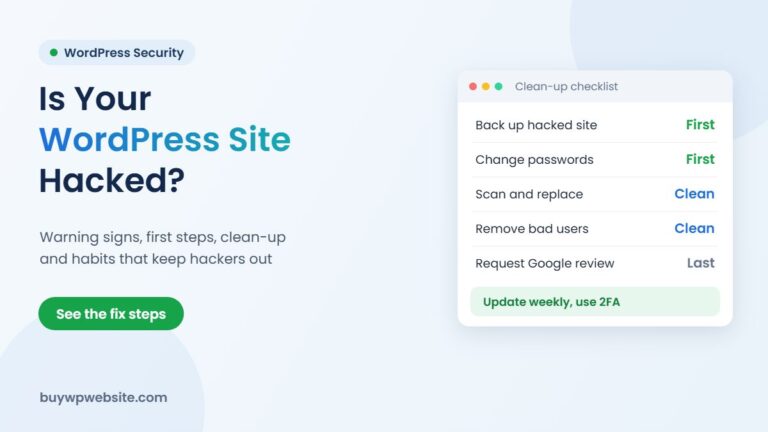
Warning signs include unknown admin users, strange redirects on mobile, spam pages appearing in Google results, a security warning in the browser, or a message from your host. If you notice any of these, restore from a clean backup or ask a professional to clean the site.
What is the difference between a backup and hosting?
Hosting is where your live website runs. A backup is a separate copy of your files and database kept for emergencies. If the backup sits only on the same server as the site, a server failure can take both.
How long does monthly maintenance take?
For a small site with a handful of plugins, the monthly routine often takes under an hour when nothing goes wrong. Problems such as plugin conflicts or a hacked site take much longer, which is why prevention is worth the time.
Facts checked in November 2026.